10 Best Ways to Remove Malware From Windows and Mac (2026)

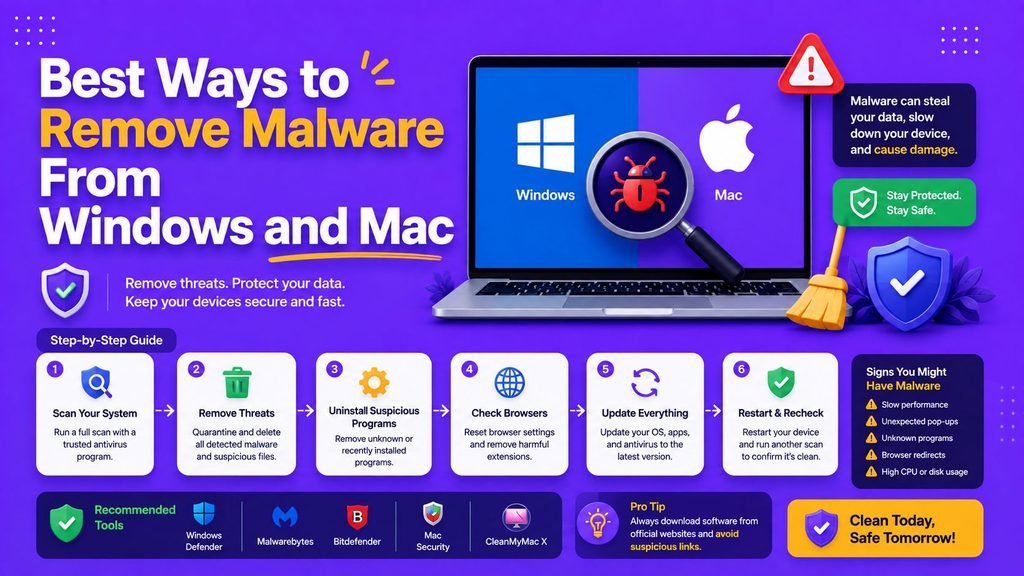
Your computer suddenly slows down to a crawl, strange pop-up windows appear out of nowhere, your web browser constantly redirects to unfamiliar websites, or programs you never downloaded start opening automatically upon startup.
These alarming behaviors are classic warning signs that tell you it is time to remove malware from Windows and Mac before your credentials or personal files are compromised.
Malware remains one of the most persistent cybersecurity threats affecting individual users, students, remote workers, and enterprise organizations in 2026. A compromised computer can ruin system performance, corrupt vital personal files, harvest sensitive passwords, or grant unauthorized remote hackers complete access to your internal network. Understanding the right steps to remove malware from Windows and Mac is essential for maintaining digital health and privacy.
The good news is that most malicious software can be safely contained and eliminated if you act immediately.
This comprehensive guide details what malware is, how it infects desktop operating systems, common warning signs, and 10 proven ways to remove malware from Windows and Mac safely without losing your personal files.
What Is Malware and How Does It Infect Computers?
Malware (short for malicious software) is any software code engineered to disrupt normal system operations, harvest private credentials, spy on user activities, or gain unauthorized administrative access to a device. Before you attempt to remove malware from Windows and Mac, it helps to understand how these threats operate behind the scenes.
┌─────────────────────────────────────────────────────────────┐
│                 Common Malware Classification               │
├──────────────────┬──────────────────┬───────────────────────┤
│ System Disruptors│ Data Harvesting  │ Extortion / Lockouts  │
│ Viruses / Worms  │ Spyware/Keylogive│ Ransomware / Rootkits │
└──────────────────┴──────────────────┴───────────────────────┘
Understanding how threat actors infect desktop operating systems helps you identify where an infection originated before you remove malware from Windows and Mac:
- Phishing Emails & Malicious Attachments: Malicious PDF, ZIP, or office document attachments disguised as invoice receipts or bank statements.
- Drive-By Downloads: Compromised websites that silently exploit browser vulnerabilities when you visit an unpatched webpage.
- Bundled Pirated Software: Illegitimate software keygens, cracked applications, or torrents carrying hidden Trojans.
- Malicious Browser Extensions: Fraudulent extensions added to Google Chrome, Microsoft Edge, or Safari that inject intrusive ads and harvest personal data.
- Compromised External Storage: Infected USB drives or external hard drives that automatically run autorun scripts upon connection.
Official security documentation published by Microsoft Security and Apple Support emphasizes that prompt isolation and immediate system scanning are critical steps when responding to a system compromise and trying to remove malware from Windows and Mac.
10 Common Types of Malware Threats
To effectively remove malware from Windows and Mac, you must first understand the specific behavior of the threat affecting your computer:
1. Computer Viruses
Malicious code attached to legitimate executable files that replicates across local drives when infected programs run.
2. Network Worms
Self-replicating software that automatically spreads across local Wi-Fi and corporate networks without requiring human interaction.
3. Trojan Horses
Software disguised as legitimate utility tools, game cracks, or media players that opens backdoors for remote attackers.
4. Invasive Spyware
Background software designed to record keystrokes (keyloggers), capture screen displays, and harvest login credentials.
5. Aggressive Adware
Software that forces unwanted popup advertisements, changes default search engines, and redirects web traffic to affiliate marketing traps.
6. Destructive Ransomware
Advanced cryptographic malware that encrypts personal documents and demands payment in exchange for decryption keys.
7. Deep System Rootkits
Stealthy malicious tools that hide deep within the operating system kernel, making it harder to remove malware from Windows and Mac using standard utilities.
8. Stealth Cryptojackers
Unauthorized background scripts that hijack your computer’s CPU and GPU resources to mine cryptocurrency, causing extreme hardware overheating.
9. Rogue Browser Hijackers
Unauthorized browser extensions that modify homepages, override search settings, and insert malicious tracking scripts.
10. Fileless Malware
Advanced volatile memory threats that run entirely inside system RAM without writing executable files to the hard drive.
Comprehensive Platform Security Comparison
| Threat Category | Windows Vulnerability | Mac Vulnerability | Primary Infection Vector | Cleanup Difficulty |
| Adware / Hijackers | Very High | High | Browser Extensions / Freeware | Easy to Moderate |
| Trojans & Spyware | High | Moderate | Unsafe Downloads / Phishing | Moderate |
| Ransomware | High | Low | Email Attachments / RDP | High (Requires Backups) |
| Rootkits | Moderate | Very Low | Kernel-level Exploits | Extremely High |
| Cryptojackers | High | High | Unsafe Websites / Scripts | Easy |
Immediate Emergency Actions Before Malware Removal
If your desktop or laptop displays severe signs of infection, do not panic or download unverified software from pop-up windows. Execute these critical emergency containment steps first before you start the process to remove malware from Windows and Mac:
┌─────────────────────────────────────────────────────────────┐
│                 Emergency Containment Protocol               │
├──────────────────┬──────────────────┬───────────────────────┤
│ Disconnect Wi-Fi │ Halt Bank Logins │ Quarantine Device     │
│ Stop Data Leaks  │ Protect Accounts │ Prevent Spread        │
└──────────────────┴──────────────────┴───────────────────────┘
- Disconnect From Internet Networks Immediately: Turn off Wi-Fi or disconnect Ethernet cables to prevent active malware from exfiltrating personal data or downloading secondary payloads.
- Halt Sensitive Account Logins: Do not enter banking passwords, credit card numbers, or primary email credentials while the computer is actively infected.
- Do Not Call Fake Security Support Numbers: Ignore all full-screen pop-ups claiming your computer is locked by law enforcement or technical support. These are social engineering scams designed to stop you from learning how to remove malware from Windows and Mac independently.
10 Best Ways to Remove Malware From Windows and Mac
To thoroughly disinfect your operating system, execute these ten step-by-step remediation procedures designed to help you remove malware from Windows and Mac completely:
Step 1: Boot into Safe Mode
Booting into Safe Mode prevents non-essential programs and third-party malware scripts from loading during startup, which makes it much easier to remove malware from Windows and Mac.
- On Windows 11/10: Hold the
Shiftkey while clicking Restart in the Start Menu $\rightarrow$ Troubleshoot $\rightarrow$ Advanced Options $\rightarrow$ Startup Settings $\rightarrow$ Restart $\rightarrow$ Select Safe Mode with Networking. - On Apple Mac: Restart your Mac and immediately press and hold the
Shiftkey (or hold the power button on Apple Silicon Macs) until the startup options screen appears, then select Safe Mode.
Step 2: Delete Temporary System Files
Malware often hides executable scripts inside temporary system caches. Clearing temporary files speeds up virus scans and helps remove malware from Windows and Mac temporary directories.
- Windows: Press
Win + R, typecleanmgr, select your system drive, check Temporary Files, and click OK. - Mac: Open Finder $\rightarrow$ Go $\rightarrow$ Go to Folder, type
~/Library/Caches, and move temporary files to the Trash.
Step 3: Run Full Antivirus System Scans
A quick scan only checks critical boot areas. You must run a full system scan to analyze every sector of your storage drives when you want to remove malware from Windows and Mac.
- Windows Defender: Open Settings $\rightarrow$ Privacy & Security $\rightarrow$ Windows Security $\rightarrow$ Virus & Threat Protection $\rightarrow$ Scan Options $\rightarrow$ Select Full Scan or Microsoft Defender Offline Scan.
- Mac Security Tools: Launch a trusted macOS antivirus utility (such as Malwarebytes for Mac or Bitdefender) and run a full system scan across all mounted volumes to remove malware from Windows and Mac storage spaces.
Step 4: Inspect Installed Applications and Programs
Manually review your application directory for suspicious or unrecognized software installed around the time performance issues began.
- Windows: Go to Settings $\rightarrow$ Apps $\rightarrow$ Installed Apps. Sort by Date Installed and uninstall any unfamiliar or shady applications to remove malware from Windows and Mac app catalogs.
- Mac: Open Finder $\rightarrow$ Applications. Drag unrecognized apps to the Trash, then empty the Trash.
Step 5: Clean Up Browser Extensions and Reset Settings
Browser hijackers inject malicious extensions that persist even after system scans. Cleaning your browser extensions is a critical step to remove malware from Windows and Mac web browsers.
- Open Google Chrome, Microsoft Edge, or Safari.
- Navigate to Extensions / Add-ons and remove any extensions you did not install personally.
- Reset your browser homepage, default search engine, and startup pages back to factory defaults.
Step 6: Review Startup Programs and Login Items
Prevent leftover malware scripts from re-launching every time you turn on your device.
- Windows: Press
Ctrl + Shift + Escto open Task Manager, navigate to the Startup Apps tab, and disable suspicious startup applications. - Mac: Go to System Settings $\rightarrow$ General $\rightarrow$ Login Items and remove unrecognized applications listed under Open at Login to effectively remove malware from Windows and Mac startup procedures.
Step 7: Secure System Host Files and DNS Settings
Advanced malware redirects legitimate web requests (like banking sites) to phishing mirrors by altering network settings. Checking these configurations helps you remove malware from Windows and Mac networking profiles.
- Verify your DNS settings are set to automatic or trusted public providers (such as Cloudflare
1.1.1.1or Google8.8.8.8). - Check the Windows Hosts file (
C:\Windows\System32\drivers\etc\hosts) to ensure web addresses are not hardcoded to IP addresses controlled by hackers.
Step 8: Update Operating System and Core Software
Once active malware is quarantined, immediately apply pending operating system patches to close security vulnerabilities and prevent new infections after you remove malware from Windows and Mac.
- Windows: Go to Settings $\rightarrow$ Windows Update $\rightarrow$ Check for updates.
- Mac: Go to System Settings $\rightarrow$ General $\rightarrow$ Software Update to install pending macOS security patches.
Step 9: Change Compromised Passwords From a Clean Device
If keyloggers or spyware were present on your system, assume all saved login credentials have been compromised before you were able to remove malware from Windows and Mac.
- Using a separate, uninfected computer or smartphone, change passwords for your primary email, banking portals, password manager, and social media accounts.
- Learn modern login protection techniques in our guide on How to Set Up Two-Factor Authentication.
- Review baseline password construction rules in our tutorial on How to Create and Manage Strong Passwords.
Step 10: Perform OS Reinstallation (If Persistent)
If aggressive malware symptoms persist or if your computer was infected with ransomware, the cleanest recovery method to completely remove malware from Windows and Mac is a complete operating system reinstall.
- Reinstall Windows using official cloud recovery options or macOS via recovery mode (
Cmd + R). - Restore personal files exclusively from verified, clean offline backups.
Malware Removal Checklist for Windows & Mac
Follow this quick reference checklist whenever you need to remove malware from Windows and Mac:
┌─────────────────────────────────────────────────────────────┐
│                 Malware Remediation Sequence               │
├──────────────────┬──────────────────┬───────────────────────┤
│ Disconnect Net   │ Boot Safe Mode   │ Delete Temp Files     │
│ Full System Scan │ Clean Browsers   │ Change Credentials    │
└──────────────────┴──────────────────┴───────────────────────┘
- [ ] Disconnect Wi-Fi and network cables.
- [ ] Boot your computer into Safe Mode to remove malware from Windows and Mac.
- [ ] Delete temporary files and system cache.
- [ ] Run a full system antivirus scan.
- [ ] Uninstall unrecognized applications and software.
- [ ] Remove suspicious browser extensions and reset browser settings.
- [ ] Disable unrecognized startup items in Task Manager or Login Items.
- [ ] Install official OS updates and security patches.
- [ ] Change passwords from a separate, trusted device.
- [ ] Enable Multi-Factor Authentication (MFA) across all personal accounts.
Hardening Desktop Infrastructure Against Future Infections
Preventing malware infections requires combining robust endpoint habits with modern network defenses after you remove malware from Windows and Mac:
- Harden Distributed Workstations: Implement strict administrative privileges and endpoint policies. Read our foundational security guide on Simple Cybersecurity Tips.
- Train Users to Recognize Phishing Traps: Educate team members to spot malicious links and fake software updates. Read our guide on 10 Best Ways to Spot Advanced Email Phishing Scams.
- Protect Corporate Network Gateways: Secure network boundaries using hardware firewalls. Read our guide on 10 Best Ways Next Generation Firewall Protects Networks in 2026.
- Implement Zero Trust Infrastructure: Restrict application permissions based on continuous identity verification. Read our tutorial on 10 Best Ways for Zero Trust Architecture Implementation in 2026.
- Review Network Perimeter Fundamentals: Explore basic boundary protection concepts in our primer on Network Security Basics.
- Secure Cloud Apps: Manage SaaS application access rules using our guide on Easy SaaS Security Rules.
- Audit API Endpoint Integrations: Prevent backend API vulnerabilities using our framework on How Software Integration Works.
Evaluating Security Software and Antivirus Pricing
Choosing cybersecurity software to remove malware from Windows and Mac requires evaluating features against licensing costs.
┌─────────────────────────────────────────────────────────────┐
│             Security Software Evaluation Criteria           │
├─────────────────────────────────────────────────────────────┤
│ 1. Real-time behavior analysis and ransomware protection    │
│ 2. Minimal CPU impact during background execution           │
│ 3. Transparent multi-device licensing terms                 │
└─────────────────────────────────────────────────────────────┘
To evaluate security platforms before buying licenses, review our decision framework on How to Choose Software.
To analyze pricing tiers for commercial antivirus software and endpoint detection suites designed to remove malware from Windows and Mac, read our Simple SaaS Pricing Guide.
To explore top-rated cybersecurity platforms for individuals and remote teams, check our review of the Top SaaS Tools 2026.
Final Thoughts
Learning how to remove malware from Windows and Mac systematically ensures that you can contain security threats without risking permanent data loss or costly hardware replacements. By combining emergency network isolation, Safe Mode scanning, browser resetting, and password updates, you can restore your operating system to full health.
Stay proactive: keep your software updated, avoid pirated downloads, verify email attachments before opening them, and maintain regular offline data backups so you won’t always have to struggle to remove malware from Windows and Mac.
Frequently Asked Questions (FAQs)
Can malware be completely removed from a computer?
Yes. Most common adware, Trojans, and spyware can be completely removed using reputable antivirus tools, Safe Mode scanning, and browser cleanup when you follow proper steps to remove malware from Windows and Mac. However, for severe rootkits or ransomware infections, performing a clean OS reinstallation is the safest resolution.
Does resetting a computer remove all malware?
A full factory reset or clean operating system reinstallation formats the primary storage drive, effectively wiping out virtually all malware. Always back up clean personal documents before performing a reset to remove malware from Windows and Mac.
Can Microsoft Defender remove malware effectively on Windows?
Yes. Built-in Microsoft Defender provides enterprise-grade protection and can detect and remove malware from Windows systems effectively. Ensure real-time protection and cloud-delivered protection remain enabled.
Are Apple Mac computers immune to malware?
No. While macOS includes robust built-in security features (such as Gatekeeper and XProtect), Macs are increasingly targeted by adware, trojans, and browser hijackers. You still need reliable procedures to remove malware from Windows and Mac devices alike.
Should I change my passwords immediately after removing malware?
Yes. If spyware, keyloggers, or trojans were present on your system, assume saved passwords were recorded. Always change passwords from a separate, uninfected device after you remove malware from Windows and Mac.
Share Your Experience
Have you ever had to remove malware from Windows and Mac devices? Which warning sign alerted you to the infection, and which antivirus tool solved the problem? Share your experience and security questions in the comments below!