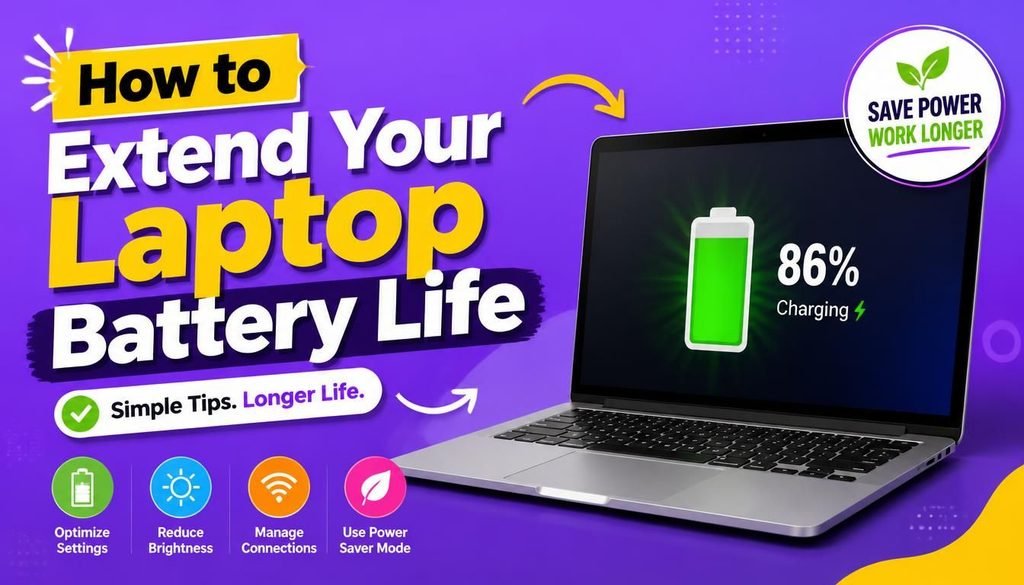
How to Extend Your Laptop Battery Life: 10 Proven Tips for Maximum Performance

Whether you are a student taking notes in a lecture hall, a freelancer working from a local cafe, or a remote worker taking back-to-back meetings, a long-lasting laptop battery is your best asset. Having a reliable, long-lasting charge gives you the ultimate confidence and freedom to stay productive wherever your day takes you.
While all laptop batteries naturally age over time, learning how to extend your laptop battery life allows you to unlock maximum runtime and keep your device performing like new for years to come.
The best part? You don’t need expensive software or advanced technical skills to achieve great results. Discovering how to extend your laptop battery life comes down to making a few easy, highly effective daily adjustments.
In this practical guide, we will walk through 10 proven tips on how to extend your laptop battery life, maximize daily energy efficiency, and protect long-term battery health for a smooth computing experience.
Why Optimizing Laptop Battery Health Is a Great Investment
Modern laptops rely on advanced lithium-ion or lithium-polymer batteries. These batteries are built to handle hundreds of charge cycles, and understanding how to extend your laptop battery life rewards you with fantastic day-to-day performance.
When you master how to extend your laptop battery life, you unlock incredible operational benefits:
- Maximum Runtime: Enjoy long flights, study sessions, or outdoor work meetings without constantly searching for a power outlet.
- Cooler & Quiet Operation: Efficient energy use reduces heat, keeping your laptop whisper-quiet and fast.
- Longer Hardware Lifespan: Protect your battery capacity so it maintains peak efficiency year after year.
- Financial Savings: Save your hard-earned money by avoiding costly battery replacements or early upgrades.
1. Optimize Your Screen Brightness
Your display screen is one of the most vibrant features of your laptop, but it is also a major power consumer. Pushing your brightness all the way to 100% drains your battery at a rapid pace.
One of the easiest habits when exploring how to extend your laptop battery life is turning the brightness down to a comfortable 40% or 50%. You can also enable your laptop’s built-in auto-brightness feature, which intelligently adapts the display to your surrounding environment.
2. Enable Power Efficiency & Battery Saver Mode
Both Windows and macOS come equipped with smart power-saving features designed to maximize your battery performance seamlessly.
When looking into how to extend your laptop battery life, turning on Battery Saver or Low Power Mode automatically optimizes energy use by:
- Managing background syncing and non-essential downloads.
- Balancing processor performance for everyday efficiency.
- Fine-tuning visual effects to conserve energy.
Turning this setting on whenever you work away from your desk is an effortless way to keep your laptop running longer.
3. Keep Background Apps Organized and Clean
Leaving apps open in the background is easy, but running heavy software or dozens of browser tabs constantly uses up your CPU and RAM resources.
If you are researching how to extend your laptop battery life, managing background applications is key:
- Close resource-heavy applications once you finish your tasks.
- Organize active browser tabs or use smart tab-suspender extensions.
- Check your system manager to keep performance smooth and efficient.
4. Unplug Unused Peripherals
External hard drives, wireless mouse receivers, flash drives, and RGB keyboards are fantastic tools, but they draw power directly from your laptop’s battery when plugged in.
Unplugging accessories when you are working on battery power keeps all available energy focused entirely on your core work.
5. Keep Your Laptop Cool and Well-Ventilated
Keeping your hardware cool is one of the best secrets to long-term battery success. Cooler temperatures maintain optimal battery health and keep system processing fast and smooth.
To protect your laptop effortlessly:
- Work on hard, flat surfaces like a clean desk or wooden table to allow proper airflow.
- Keep air vents clean and dust-free.
- Store your laptop in moderate, comfortable environments.
6. Adopt Healthy, Smart Charging Habits
Modern laptop batteries thrive on steady, partial charging cycles rather than extreme full drains. Understanding smart charging is a vital part of how to extend your laptop battery life.
Try to keep your battery level between 20% and 80% whenever possible. Many modern laptop manufacturers (like Asus, Lenovo, HP, and Apple) offer built-in battery protection software that lets you limit maximum charging to 80%. If you work plugged into a desk most of the day, enabling this smart setting significantly extends total battery lifespan.
To see how modern hardware and software standards improve daily tech productivity, explore our guide on Latest Software and AI Tech Trends.
7. Turn Off Wireless Connections When Offline
When Wi-Fi and Bluetooth are enabled, your laptop continually looks for nearby networks and devices in the background.
If you are working offline—writing a document, reviewing spreadsheets, or reading files—turning off Wi-Fi and Bluetooth conserves extra energy over long working hours.
8. Keep Your Operating System Updated
System updates provide fantastic performance enhancements and energy optimizations.
Updating your operating system and hardware drivers regularly ensures your laptop benefits from the latest power-management improvements engineered by software developers.
9. Streamline Your Startup Programs
Starting your laptop with a clean, streamlined boot process saves significant battery power right from the beginning of your day.
Review your startup list in Task Manager (Windows) or System Settings (Mac), and keep only essential programs enabled for startup. This speeds up boot times and preserves battery power for your actual work.
10. Check Your Battery Health Metrics
Monitoring your battery health status helps you stay informed and confident about your laptop’s performance over time.
- Windows: Generate a comprehensive battery health report by typing
powercfg /batteryreportinto Command Prompt. - Mac: Go to System Settings > Battery > Battery Health to view your maximum capacity status.
Official diagnostic tools and system guides are accessible on developer hubs like GitHub , allowing you to track health metrics effortlessly.
Best Practices for Maximum Battery Efficiency
| Actionable Habit | Key Benefit |
| Set Moderate Brightness | Reduces energy drain while keeping screen viewing comfortable. |
| Use Battery Saver Mode | Automatically optimizes background tasks for smooth battery runtime. |
| Disconnect Accessories | Keeps battery energy dedicated to your primary workload. |
| Maintain Fresh Airflow | Keeps battery temperatures low for maximum long-term health. |
| Maintain 20%–80% Charge | Optimizes chemical efficiency for lasting battery performance. |
Final Thoughts
Mastering how to extend your laptop battery life is an empowering process that ensures your device is always ready when you need it most. By building simple, proactive habits—like setting comfortable brightness levels, keeping vents clear, and practicing smart charging—you can enjoy superior battery performance, fast system speeds, and long-term peace of mind.
Now that you know how to extend your laptop battery life, start applying these simple tips today to get the absolute best out of your device!
Frequently Asked Questions (FAQs)
Is it safe to work on my laptop while it is charging?
Yes, modern laptops manage power intelligently while plugged in. For optimal health during heavy tasks like video editing, simply ensure your laptop is placed on a flat surface to maintain cool airflow.
Will keeping Battery Saver mode turned on harm my performance?
Not at all. Battery Saver mode simply optimizes background syncing and minor animations, ensuring your essential apps run smoothly while conserving energy.
How many years of high performance can I expect from a well-maintained battery?
With smart charging habits and proper cooling, a modern laptop battery can deliver excellent performance for 3 to 5 years before experiencing noticeable capacity reduction.
Share Your Thoughts
Which of these tips on how to extend your laptop battery life helped you boost your daily runtime the most? Share your favorite laptop hacks or ask any questions in the comments below!