
How SSL Certificates Work & How to Install a Free Let’s Encrypt SSL

A website that uses HTTPS is now the absolute standard for a secure and trustworthy web experience. If you’ve ever noticed a padlock icon next to a website address in your browser bar, you’ve seen the direct result of an active SSL certificate in action.
Understanding how SSL certificates work is essential for anyone building, hosting, or managing a web platform in 2026.
But what exactly does an SSL certificate do? How does it protect sensitive information traveling between a visitor and a server? And how can you install a free Let’s Encrypt SSL certificate without paying for expensive yearly licenses?
This complete technical manual breaks down how SSL certificates work in simple, practical terms and walks you through installing a free Let’s Encrypt SSL certificate. Whether you run a WordPress blog, small business site, portfolio, online store, or web app, securing your traffic with HTTPS is the foundational pillar of modern web defense.
What Is an SSL Certificate?
SSL stands for Secure Sockets Layer—though modern websites almost exclusively use its upgraded successor, TLS (Transport Layer Security).
An SSL/TLS certificate allows a website to establish an encrypted connection with a visitor’s browser. HTTPS encrypts information moving between both ends so hackers on public networks cannot intercept it.
┌─────────────────────────────────────────────────────────────┐
│                 Insecure HTTP vs. Secure HTTPS              │
├─────────────────────────────────────────────────────────────┤
│ HTTP:  Browser ──────── Plaintext Data ───────► Server      │
│ HTTPS: Browser ─── Encrypted (TLS Tunnel) ────► Server      │
└─────────────────────────────────────────────────────────────┘
When analyzing how SSL certificates work, you quickly realize their primary job is shielding sensitive transmitted data such as:
- User login credentials & master keys
- Contact form submissions & email addresses
- Personal identification details
- Payment cards & financial data
- Search queries & private account settings
Without encryption, transmitted data travels as plain text, exposing users to man-in-the-middle attacks. An SSL/TLS certificate also helps browsers verify they are communicating with your genuine web server rather than a spoofed domain.
For a deeper dive into the underlying mathematical algorithms that keep data safe once encrypted, see our detailed guide on How AES-256 Encryption Works.
How SSL Certificates Work: The TLS Handshake Explained
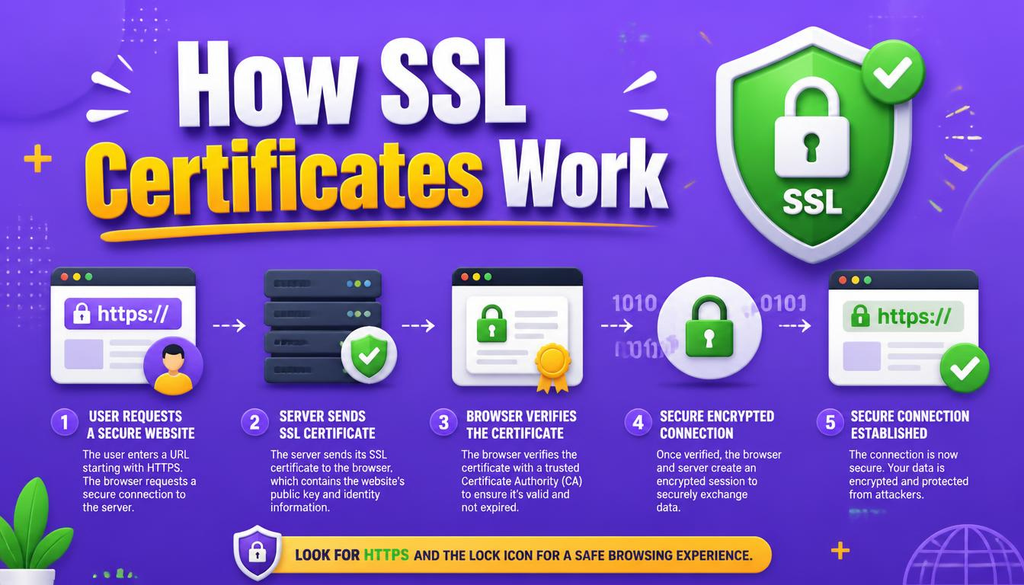
The SSL/TLS mechanism functions through an automated, multi-step negotiation process. When a user visits an HTTPS-enabled website, the browser and server establish an encrypted connection through what security engineers call a TLS Handshake.
┌─────────────────────────────────────────────────────────────┐
│                 The TLS Handshake Process                   │
├─────────────────────────────────────────────────────────────┤
│ 1. Client Hello   ──► Connects to Server                    │
│ 2. Server Hello   ──► Sends SSL Certificate & Public Key    │
│ 3. Authenticate   ──► Browser Validates CA Signature        │
│ 4. Session Keys   ──► Symmetric Keys Established            │
│ 5. Secure Stream  ──► Encrypted HTTPS Traffic Begins        │
└─────────────────────────────────────────────────────────────┘
Here is a step-by-step breakdown of how SSL certificates work behind the scenes:
Step 1: Browser Connects to the Website
When you enter a web address starting with https://, your browser reaches out to the server IP and requests a secure connection.
Step 2: Server Provides Its Certificate
The web server responds by sending its digital TLS certificate. This file contains the domain name, issuer details, expiration date, and the server’s public key.
Step 3: Browser Validates the Certificate
Your browser verifies the certificate against a trusted list of Certificate Authorities (CAs). Learning how SSL certificates work during validation means confirming that:
- The certificate is active and not expired.
- The domain name matches your request exactly.
- The digital signature originates from a recognized authority.
Step 4: Session Keys Are Established
Modern TLS leverages both asymmetric and symmetric cryptography. Public-key (asymmetric) encryption establishes trust during the setup phase, while symmetric keys encrypt the actual high-speed session data.
Step 5: Encrypted Communication Begins
Once key exchange finishes, both ends send encrypted data. This is why your browser displays HTTPS (the “S” standing for Secure) along with the security padlock icon.
SSL vs TLS: What Is the Technical Difference?
People frequently use the term “SSL certificate,” but modern servers run on TLS.
- SSL (Secure Sockets Layer): Developed by Netscape in the 1990s (SSL 2.0 and 3.0). It is now deprecated and considered insecure due to known vulnerabilities.
- TLS (Transport Layer Security): The modernized, cryptographic upgrade to SSL.
When security guides discuss how SSL certificates work, they are referring to certificates configured for HTTPS using modern TLS protocols (TLS 1.2 and TLS 1.3). The phrase “SSL” remains popular simply due to widespread brand recognition.
Why Does Your Website Need HTTPS in 2026?
Implementing HTTPS goes far beyond displaying a simple lock icon:
- Protects Visitor Traffic: Encrypts data transfers, preventing eavesdropping over public Wi-Fi networks. Understanding how SSL certificates work reinforces why raw HTTP is dangerous.
- Builds Instant Visitor Trust: Eliminates scary browser warnings like “Not Secure” that drive audience bounce rates through the roof.
- Secures User Logins: Safeguards passwords during transit. If you run a WordPress site, protect your administrative panel by learning How to Create Unhackable Passwords.
- Required for Modern Web APIs: Advanced browser features (like HTTP/2, geolocation, and Progressive Web Apps) require HTTPS to function.
- Boosts SEO Rankings: Google explicitly considers HTTPS a positive search engine ranking factor.
To review official cybersecurity infrastructure standards, check out the CISA HTTPS Security Guidelines.
What Is Let’s Encrypt?
Let’s Encrypt is a free, automated, open Certificate Authority operating for the public’s benefit. Created by the Internet Security Research Group (ISRG), its mission is to make HTTPS accessible to every website on the globe.
┌─────────────────────────────────────────────────────────────┐
│              Why Web Owners Choose Let's Encrypt            │
├─────────────────────────────────────────────────────────────┤
│ 100% Free ──► Automated Renewal ──► Wide Browser Trust      │
└─────────────────────────────────────────────────────────────┘
Key Advantages of Let’s Encrypt:
- Zero Cost: Obtains trusted TLS certificates without paying hundreds of dollars annually.
- Automated Management: Uses the Automated Certificate Management Environment (ACME) protocol to issue and renew certificates without manual intervention.
- Transparent Security: All issued certificates are publicly logged for maximum accountability.
Whether you run a small blog or an enterprise dashboard, mastering how SSL certificates work through Let’s Encrypt allows you to protect traffic effortlessly.
Prerequisites Before Installing Free Let’s Encrypt SSL
Before generating a free certificate, verify these three essential components:
- A Registered Domain Name: A valid domain (e.g.,
yourdomain.com) pointing directly to your host. - Active Web Hosting: A server setup where you have administrative control—such as cPanel shared hosting, VPS, or dedicated cloud environments.
- Proper DNS Configuration: Your domain’s A Record (and
wwwCNAME) must resolve correctly to your server IP address. If DNS records are misconfigured, domain validation will fail.
How to Install a Free Let’s Encrypt SSL Certificate
Installing your certificate depends on your hosting environment. Knowing how SSL certificates work makes the installation process clear regardless of your host.
Method 1: Through Your Hosting Control Panel (easiest)
Most modern hosting providers (including cPanel, Hostinger, and Plesk) offer one-click Let’s Encrypt integration.
- Log in to your hosting control panel.
- Navigate to the SSL/TLS, Security, or Let’s Encrypt section.
- Select your desired domain or subdomains.
- Click Install or Issue. The host handles validation and key placement automatically.
- Verify setup by opening
[https://yourdomain.com](https://yourdomain.com)in a private window.
Method 2: Using Certbot on Self-Managed Servers (VPS / Cloud)
If you manage a Linux server (Ubuntu/Debian) running Nginx or Apache, use Certbot, the official ACME client built by the Electronic Frontier Foundation (EFF).
┌─────────────────────────────────────────────────────────────┐
│                 Certbot CLI Installation Steps              │
├─────────────────────────────────────────────────────────────┤
│ Install Certbot ──► Run Domain Challenge ──► Auto-Configure │
└─────────────────────────────────────────────────────────────┘
Run the following commands in your SSH terminal:
Bash
# Update software repositories
sudo apt update

# Install Certbot and its Nginx plugin
sudo apt install certbot python3-certbot-nginx

# Obtain and install certificate automatically
sudo certbot --nginx -d yourdomain.com -d www.yourdomain.com
Certbot automatically completes the validation challenge, alters your web server configurations, and enables HTTPS redirection.
How Let’s Encrypt Validates Domain Ownership
Before issuing a certificate, Let’s Encrypt must confirm that you actually control the domain. Understanding how SSL certificates work during domain validation involves two main challenges:
- HTTP-01 Challenge: The ACME client places a temporary file on your web server. Let’s Encrypt fetches it via HTTP to verify control.
- DNS-01 Challenge: The client creates a specific
TXTrecord inside your domain’s DNS settings. This method is required when issuing Wildcard Certificates (*.yourdomain.com).
Don’t Forget SSL Certificate Renewal
Let’s Encrypt certificates are deliberately short-lived—valid for 90 days. Short lifespans limit damage if a private key is ever leaked and encourage full automation.
To test whether your automatic renewal timer is active via Certbot, run:
Bash
sudo certbot renew --dry-run
If you manage business portals, seeing how SSL certificates work hand-in-hand with automated renewals helps prevent downtime. Combine this with proactive defense measures by learning How to Protect Your WordPress Website From DDoS Attacks.
How to Force Your Website to Use HTTPS
Installing an SSL certificate is only half the battle. You must force all inbound HTTP traffic to redirect automatically to the secure HTTPS version.
Forcing HTTPS via .htaccess (Apache Servers):
Add the following snippet to the top of your .htaccess file:
Apache
RewriteEngine On
RewriteCond %{HTTPS} off
RewriteRule ^(.*)$ https://%{HTTP_HOST}%{REQUEST_URI} [L,R=301]
Forcing HTTPS inside WordPress:
Go to Settings > General inside your WordPress dashboard and update both WordPress Address (URL) and Site Address (URL) to include https://.
┌─────────────────────────────────────────────────────────────┐
│              WordPress URL Configuration Checklist          │
├─────────────────────────────────────────────────────────────┤
│ WordPress Address (URL) ──► https://yourdomain.com         │
│ Site Address (URL)      ──► https://yourdomain.com         │
└─────────────────────────────────────────────────────────────┘
For comprehensive identity defense across all platform layers, check out our guide on How to Set Up Two-Factor Authentication.
Fixing Mixed Content Errors
A Mixed Content Warning occurs when an HTTPS page attempts to load images, scripts, or stylesheets using insecure http:// paths. This prevents the browser from displaying the full green lock icon.
┌─────────────────────────────────────────────────────────────┐
│                 Resolving Mixed Content Issues              │
├─────────────────────────────────────────────────────────────┤
│ Scan Insecure Assets ──► Update Links ──► Clear Site Cache  │
└─────────────────────────────────────────────────────────────┘
Steps to Resolve Mixed Content:
- Open Browser Developer Tools (
F12) and check the Console tab for HTTP asset warnings. - Update hardcoded URLs in your database or template files to
https://. - Use WordPress plugins like Really Simple SSL or Search & Replace to update legacy database strings.
- Clear your site and CDN cache completely.
Troubleshooting Common SSL Installation Issues
When analyzing how SSL certificates work in real-world server environments, administrators occasionally hit setup hurdles.
| Common Problem | Root Cause | Practical Solution |
| DNS Validation Failed | Domain A Record points to wrong server IP | Update DNS records and wait for propagation before retrying |
| Ports 80 / 443 Blocked | Firewall blocking incoming HTTP/HTTPS traffic | Open ports 80 and 443 in UFW, AWS Security Groups, or Cloudflare |
| Certificate Name Mismatch | SSL covers domain.com but not [www.domain.com](https://www.domain.com) | Re-issue certificate ensuring all subdomains are explicitly listed |
| Expired Certificate Error | Automatic cron job failed to renew | Run manual renewal commands and review ACME renewal logs |
To audit broader server entry points, review our core handbook on Network Security Basics.
Complete SSL Security Checklist
Use this quick checklist to confirm your HTTPS installation is rock solid:
| Security Focus Area | Practical Action Step | Status |
| Certificate Active | Verify valid certificate signature in browser | ☐ |
| 301 Redirection | Redirect all http:// calls automatically to https:// | ☐ |
| Auto-Renewal Active | Test automated Let’s Encrypt 90-day renewal timers | ☐ |
| Zero Mixed Content | Audit console logs for insecure HTTP media assets | ☐ |
| Email Authentication | Protect domain reputation by reviewing Email Security Rules | ☐ |
Common SSL Myths vs. Realities
| Popular Myth | Technical Reality |
| “Paid SSL certificates offer stronger encryption than free ones.” | False: Let’s Encrypt uses the exact same encryption algorithms (AES-256 / RSA / ECC) as expensive paid certificates. |
| “SSL certificates protect websites from getting hacked.” | False: SSL only encrypts data in transit. It does not stop malware, SQL injections, or bad passwords. |
| “I don’t need SSL if I don’t process credit cards.” | False: Modern browsers flag all HTTP sites as insecure, damaging user trust and SEO rankings. |
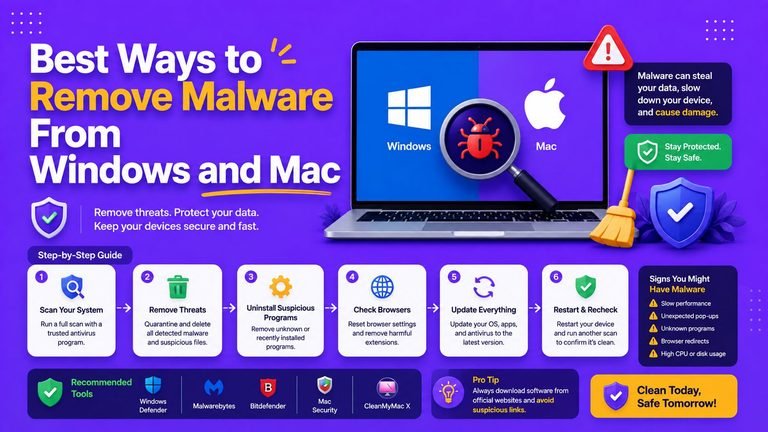
To understand how SSL certificates work as part of a broader defense stack—and why they won’t stop unpatched server vulnerabilities—read What Is Malware and How to Completely Remove It.
Final Thoughts
Mastering how SSL certificates work is a critical skill for managing a secure, high-ranking website in 2026. SSL/TLS certificates encrypt traffic, protect user credentials, verify identity, and boost search visibility.
Thanks to Let’s Encrypt, securing your website no longer requires buying expensive certificates. By automating your setup via hosting panels or CLI tools like Certbot, you guarantee complete encryption for all visitors.
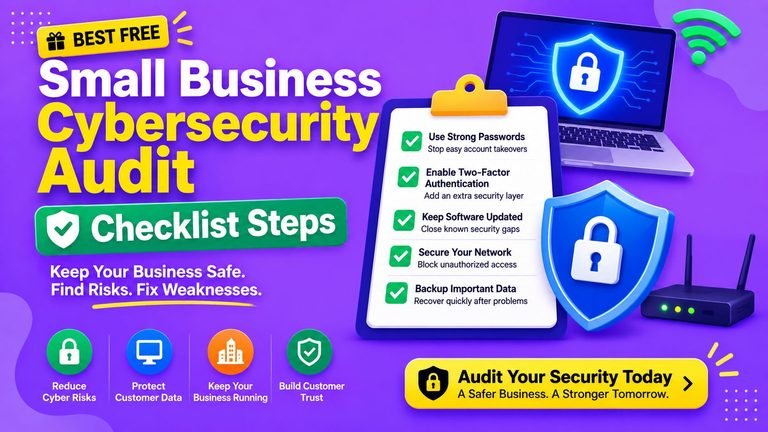
Remember: HTTPS is just one layer of modern defense. Pair your SSL setup with strong master passwords, multi-factor authentication, regular backups, and active firewall monitoring.
Frequently Asked Questions (FAQs)
How SSL certificates work in simple terms?
In simple terms, how SSL certificates work involves creating an encrypted tunnel between a visitor’s web browser and the website server. This tunnel scrambling ensures that no hacker on the same network can read or steal passwords, messages, or financial information.
Is Let’s Encrypt SSL really 100% free?
Yes. Let’s Encrypt is a non-profit Certificate Authority supported by major industry sponsors. There are no fees, hidden subscriptions, or limits on how many free certificates you can generate.
Why do Let’s Encrypt certificates expire after 90 days?
Short 90-day lifespans minimize potential damage if a certificate key is ever stolen and force site administrators to rely on robust, automated renewal processes.
Will an SSL certificate stop hackers from breaking into my site?
No. An SSL certificate only encrypts data moving across the internet. You still need strong passwords, updated software, and firewalls to secure your web server application.
What Is Your HTTPS Setup?
Now that you understand how SSL certificates work, is your site already running a free Let’s Encrypt certificate, or are you preparing to migrate from HTTP? Share your thoughts and technical questions in the comments below!




One Comment